 TarifPing
🧩 The browser extension
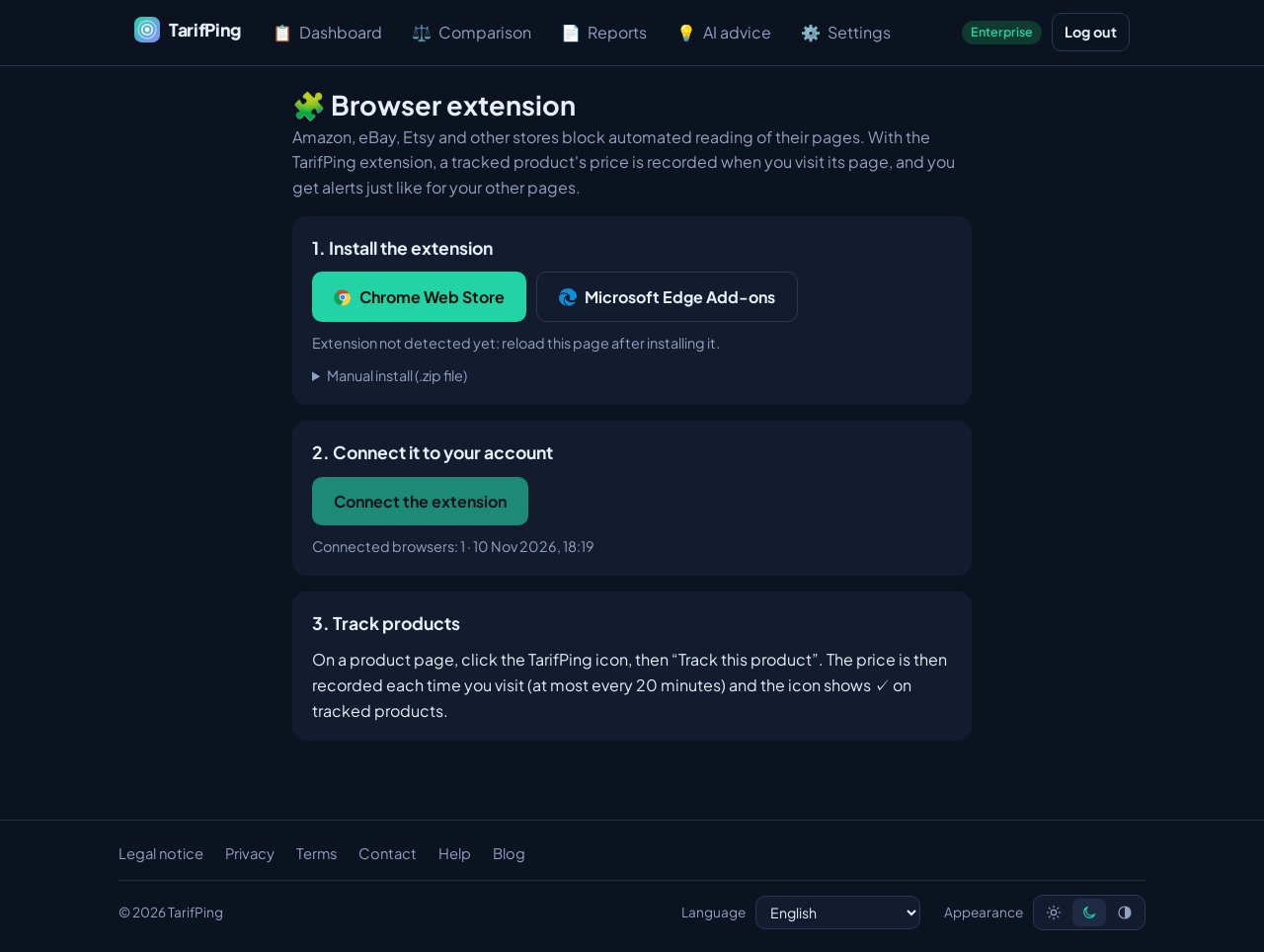
Large stores block robots: TarifPing cannot read their pages on its own. With the extension, the price of a tracked product is recorded when you visit its page, and you are alerted just like for your other pages.
Supported sites
Any other site can be tracked directly from the dashboard, without the extension.
1. Install the extension
The extension works with Chrome, Edge and Brave (desktop).
From the Chrome Web Store or Microsoft Edge Add-ons
Open the "TarifPing – price tracking" listing on the Chrome Web Store and click Add to Chrome. Then pin the TarifPing icon (puzzle piece › pin) to keep it at hand. On Edge, open the listing on Microsoft Edge Add-ons and click Get. The Install the extension button at the top of the TarifPing website opens the right store for your browser.
Or manual install (.zip file)
- In TarifPing, open 🧩 Extension (dashboard) expand Manual install (.zip file) and click Download the extension.
- Unzip the downloaded file.
- Open
chrome://extensions, turn on Developer mode (top right), click Load unpacked and choose the unzipped folder.
2. Connect the extension to your account
Go back to the TarifPing 🧩 Extension page (reload it if needed): the extension connects to your account automatically. Otherwise, click Connect the extension. Your email address then appears in the extension window.
3. Track a product
- Open a product page on one of the sites above. The TarifPing icon shows +: this product can be tracked.
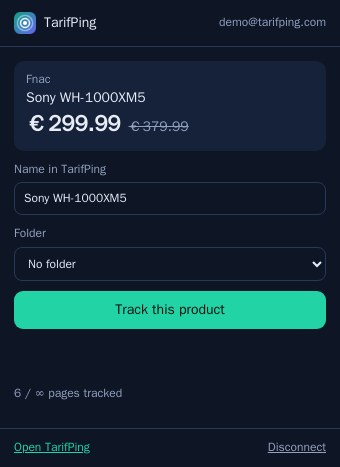
- Click the icon: the extension shows the price read on the page (and the crossed-out price, if any).
- Choose a name and a folder, then click Track this product.
Then, nothing to do
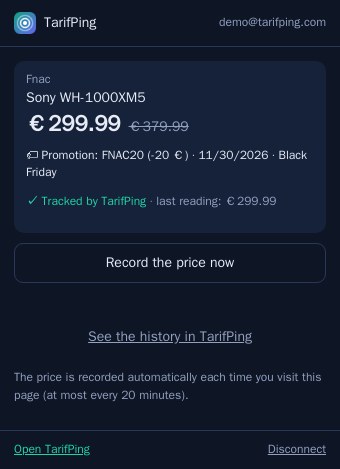
On a tracked product, the icon shows ✓. Each time you visit the page, the price is recorded automatically (at most once every 20 minutes). A drop, an increase, a promotion or a stock-out triggers your usual alerts.
Record the price now forces a record; See the history in TarifPing opens the product page.
Something's not working?
"Reload the page to activate the extension"
The extension has just been installed or updated: reload the store tab (F5).
"No price found on this page"
Wait until the page has finished loading or pick a variant (size, colour), then reopen the extension window.
The icon shows neither + nor ✓
You are not on a product page (home page, search results), or the extension is not connected: open its window and click "Connect my account".
What the extension reads (and does not)
Only product pages on the sites above, and it only sends TarifPing the products you track. It never reads your history, your forms or your other tabs. Details in the privacy policy.