TarifPing
Help › Get started
🚀 Getting started with TarifPing
Your first competitor is monitored in two minutes. No password to remember, no credit card for the free plan.
Create an account or log in
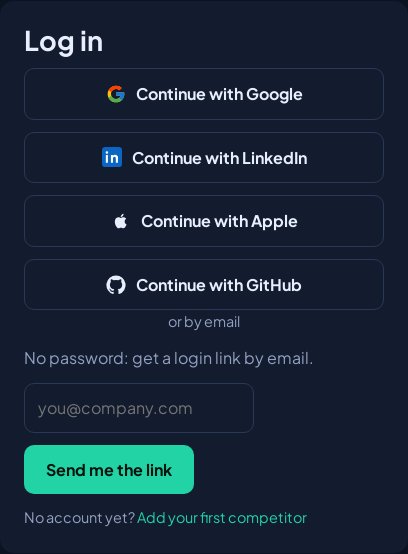
Three ways to log in, your choice:
- Continue with Google, LinkedIn, Apple or GitHub: one click, and your account is created with that account's email address.
- By email: enter your address and you receive a login link valid for 30 minutes. Click it, that's all.
- From the website's home page: paste a competitor's address directly; your account is created at the end of the wizard.
Good to knowSame email = same account. If you log in with Google one day and with an email link another day, you find the same data.
Add a competitor's page
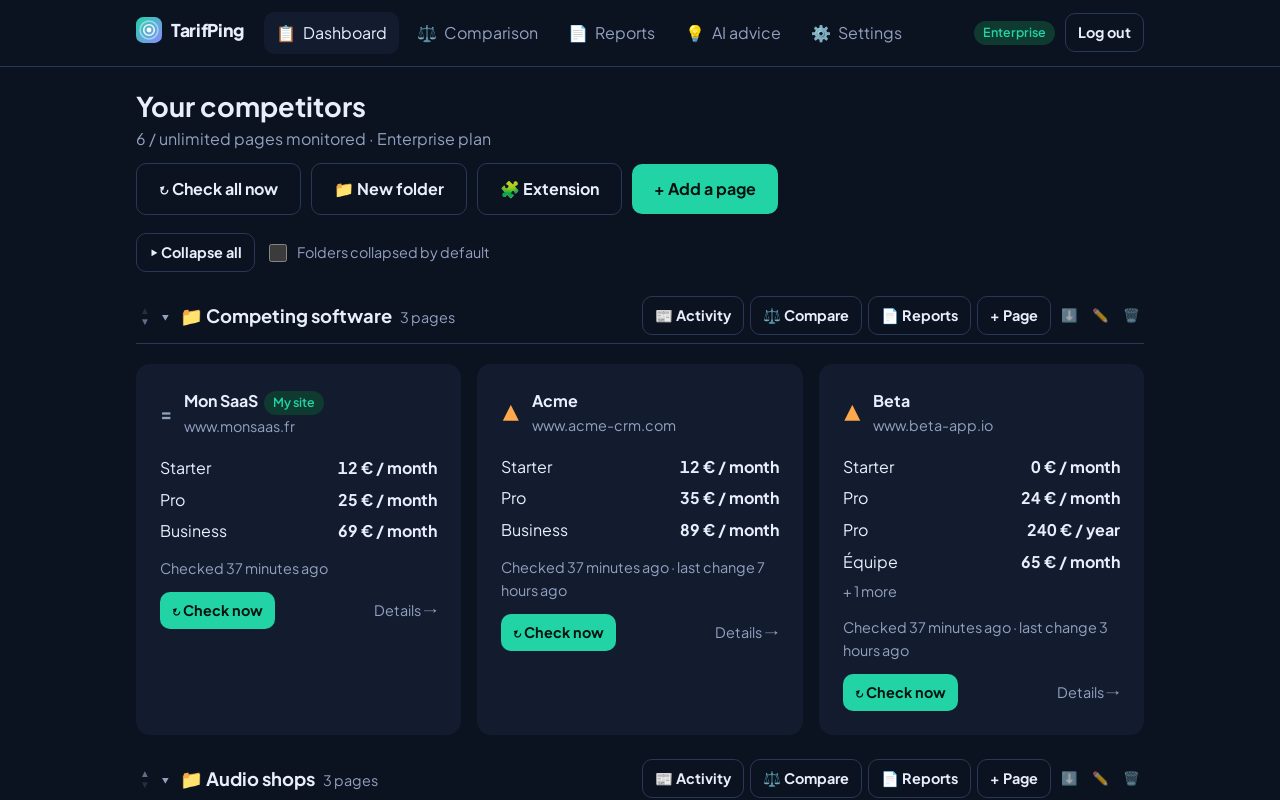
- On the dashboard, click + Add a page.
- Paste the address of the page where the competitor shows its prices (pricing page, product page…), then click Analyze the page.

- TarifPing shows the prices it found. Untick the ones you don't care about, then click Continue.
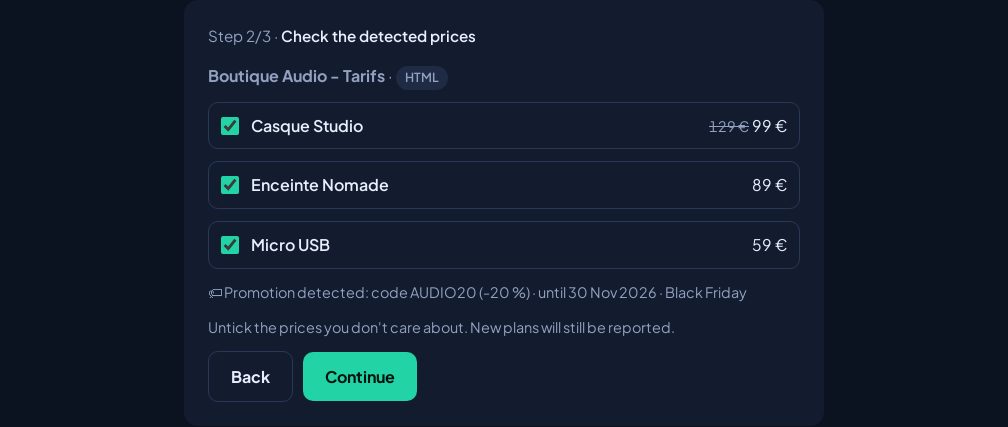
Here TarifPing also spotted a crossed-out price and a promo code, with its end date. - Choose the check frequency and the folder, then Finish. The first record is the baseline.
The site says it "blocks automated reading"?Amazon, eBay, Fnac, Cdiscount and about thirty other stores refuse robots. For them, use the browser extension: the price is recorded when you visit the product page.
No prices found?Open Advanced options and enter the part of the page that holds the prices (a CSS selector, for example
.pricing). Pages that only show their prices with JavaScript cannot be read.Add your own site
Also add your own pricing page and tick This is my own pricing page. It appears first, marked "My site", and is the reference in the comparison and the AI advice.
Group your pages in folders
One folder per product, client or market: click 📁 New folder, then pick the folder when you add a page (or in its settings). Each folder has its shortcuts: Activity, Compare, Reports and + Page. The ▲▼ arrows change the folder order.